 Windows Manual
Windows Manual
Windows Manual
How the app works on Windows, what each view means, and the day-to-day workflows.
PluginHub runs on Windows 10 or Windows 11, 64-bit. Run the installer you downloaded, PluginHub-Setup-1.0.x.exe. It installs for your Windows account only, so it never asks for administrator permission, and it puts PluginHub in your Start menu. A desktop shortcut is optional.
On first launch PluginHub scans your plugin folders, then checks every vendor for the latest versions. The first scan takes a minute or two on a large collection; later ones are quicker. Paste your PluginHub license key when asked, or start with the free trial scans. One license covers your Macs and PCs.
PluginHub scans your PC for installed audio plugins, checks each vendor's website for the latest version, and tells you which ones have updates available. It supports AAX VST3 VST2 and CLAP plugins. It is a desktop app that lives in the Windows system tray: open the dashboard from the tray icon, the Start menu, or a desktop shortcut.
Closing the dashboard window doesn't quit PluginHub. It keeps running in the system tray, checks for updates on its own schedule, and tells you when something new turns up.
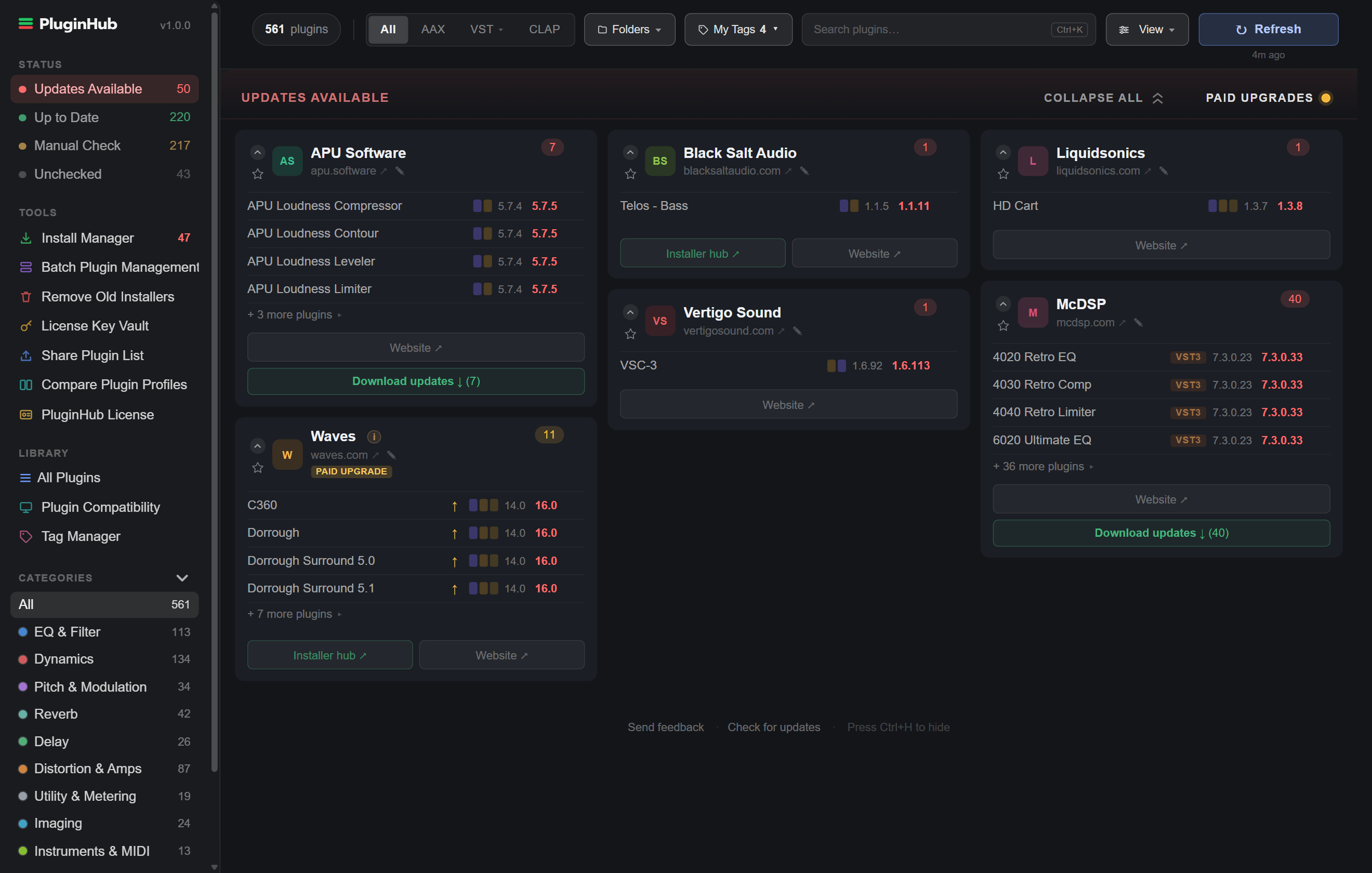
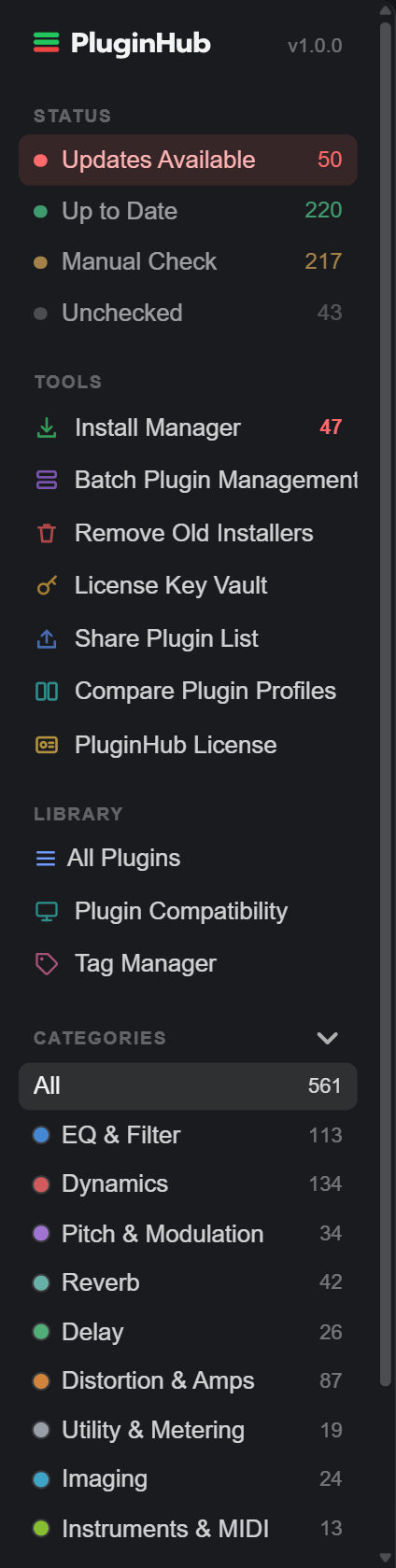
Everything lives down the left side of the window. The sidebar has four sections:
Every count stays live as you work. Install Manager shows in red how many of your pending updates it can download and install for you.
At the very bottom of the sidebar sit Take the tour, which walks you through the dashboard again, and the gear that opens Settings. The version number next to the PluginHub logo at the top opens the About window.
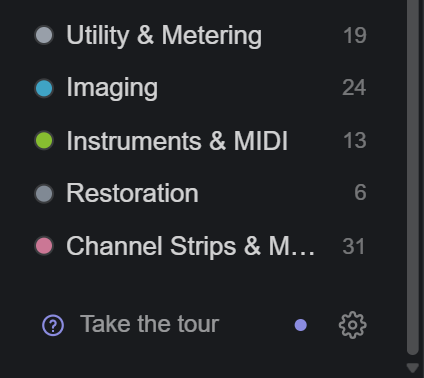
Drag a section heading to put the sections in whatever order suits you. Drag the sidebar's right edge to resize it; double-click that edge to snap it back to the default. Categories collapses with the chevron on its heading if you would rather keep the list short. If you prefer tabs across the top, View › Navigation switches to the top tab row. Nothing is lost either way; only the placement changes.
The Status section at the top of the sidebar splits your installed collection four ways, each row carrying its own count. A fifth Pinned row appears first when you have starred at least one vendor or plugin.
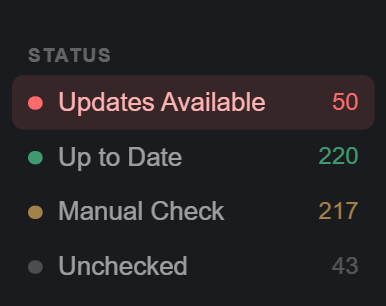
Vendors with at least one plugin where your installed version is older than what the vendor currently lists. Each vendor card shows your version and the latest one side by side, the plugin's formats, and the vendor's buttons: Website, Installer hub when the vendor delivers updates through its own app, and Download updates when Install Manager can fetch them for you. The red number is how many plugins (not vendors) have updates pending.
Everything PluginHub checked and confirmed is current. Green count. The bulk of a normal collection lives here.
Vendors that need a check by hand. Either their site doesn't publish version data PluginHub can read, or they deliver updates only through their own installer app. Use Website or Installer hub on the card to check.
After you've checked a plugin, right-click it (or open its ⋮ menu) and choose Mark up to date. The row turns green so you can see at a glance what's already handled. If a newer version gets installed later, the row turns blue and the plugin appears in a notice at the top of the view so you can re-check and re-mark it. Reset marked (N) in the section header reviews and clears every mark in one pass.
The blue Export Marked Dates button (it appears once at least one plugin is marked) opens a review of every mark, grouped by vendor with the oldest checks first, so the top of the list is your re-check queue. Export it as a PDF, copy it for Google Sheets, or copy it as CSV.
Plugins from vendors PluginHub doesn't have a checker for yet. PluginHub still shows them, with the installed version, format badges and a Website button so you can check by hand. New vendors are added all the time, and your list updates without a new version of PluginHub.
Some "updates" are actually paid major-version upgrades: Waves V14 to V16, FabFilter Pro-Q 3 to Pro-Q 4, iZotope Ozone 10 to Ozone 11. PluginHub flags these so they don't get mixed in with free updates. A plugin whose new version is a paid jump gets an amber arrow, and a vendor card whose entire upgrade list is paid gets a single PAID UPGRADE badge instead.
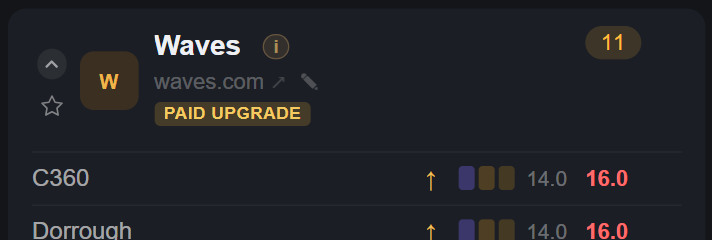
The Paid Upgrades switch on the right of the Updates Available header controls whether paid items are listed at all:

The switch works in place: the dashboard doesn't redraw or move. It only appears when you have at least one paid upgrade or newer major version waiting.
Sometimes PluginHub is right that a newer version exists, but the row shouldn't be on your to-do list. Two common cases: you're happy on your current version, or a vendor's installer stamps a slightly different version number inside the plugin file than the release it came from, so the row can never clear on its own.
Right-click any plugin row on Updates Available, or click the ⋮ button at the end of the row, and choose Mark as up to date. The plugin moves to Up to Date immediately and its row carries a Marked up to date note with the date and the version the checker reported. This works everywhere update rows appear, including All Plugins.
The mark is version-aware, not permanent. The moment the vendor ships a version newer than the one you marked, the plugin returns to Updates Available on its own. To undo a mark early, open the same menu and choose Unmark up to date. Marking and snoozing never stack: marking a plugin clears any snooze on it, and snoozing clears its mark.
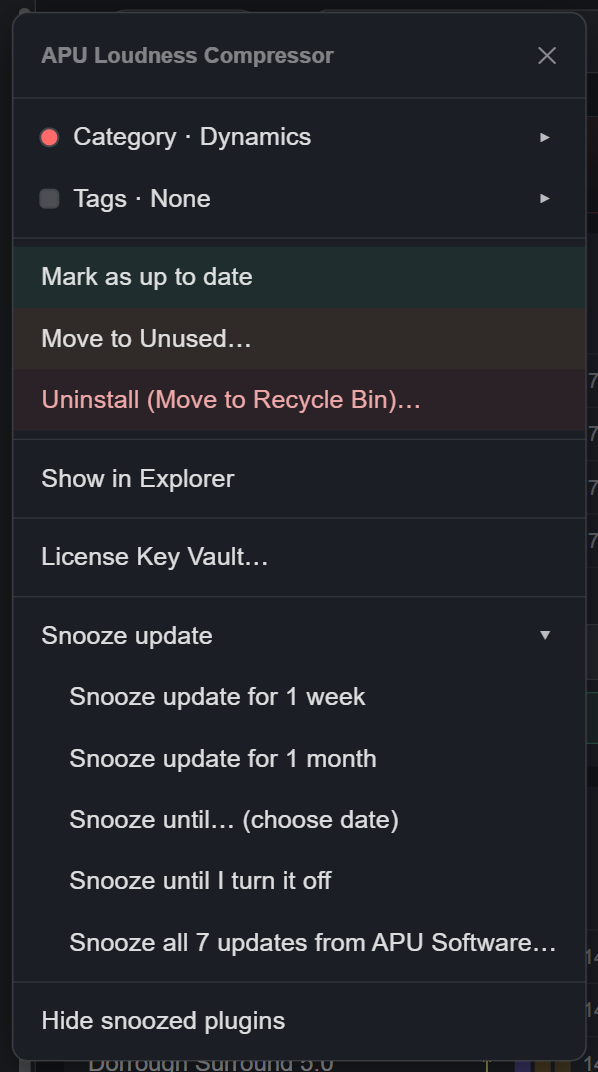
Sometimes an update is real but not for right now: you're mid-project and don't want to change anything, or you'd rather let a fresh release settle. Right-click any plugin row on Updates Available, or click its ⋮ button, open Snooze update and pick:
A snoozed update drops out of the Updates Available count. The row stays in its vendor card, greyed out with a snooze label, so nothing silently disappears. To wake one early, open the same menu and choose Stop snoozing (show update).
If you'd rather snoozed rows disappear entirely instead of sitting there dimmed, choose Hide snoozed plugins at the bottom of any row menu, or turn off Show snoozed plugins in Settings. Any card that's hiding some shows a "N snoozed plugins hidden" line in its footer. Turn the setting back on to bring the dimmed rows back exactly as they were.
The segmented control in the top bar filters every view by format: All, AAX, VST ▾ (VST3 and VST2 together, or either one from its dropdown) and CLAP, which appears once you have a CLAP plugin. The selection is sticky until you change it.

Next to the format segments sit two dropdowns: Folders, which opens your plugin folders in File Explorer (see Plugin folders), and My Tags, which filters the dashboard by your own tags (see Tags & the Tag Manager). Search matches vendor names, plugin names and categories. Refresh rescans your plugins and checks every vendor again; the time under it says when the last check ran.
Sorting lives in the View menu: A to Z, newest install or update first, oldest install or update first, by vendor, or grouped by status. The sort you pick is remembered.
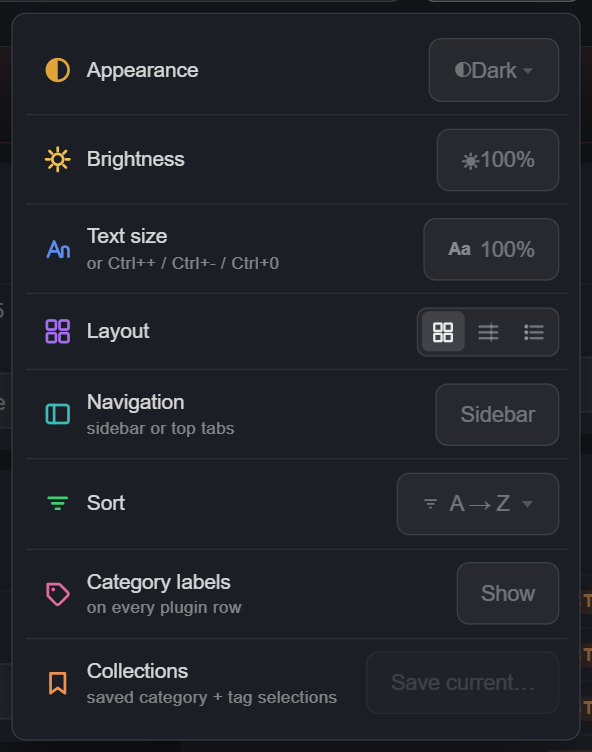
The View menu in the top bar collects every display setting in one place.
The default. One card per vendor, each only as tall as its own plugin list, laid out in columns so more fits on screen.
Vendors stacked full width with several plugins to a line. Better when you want to read a lot of version numbers at once.
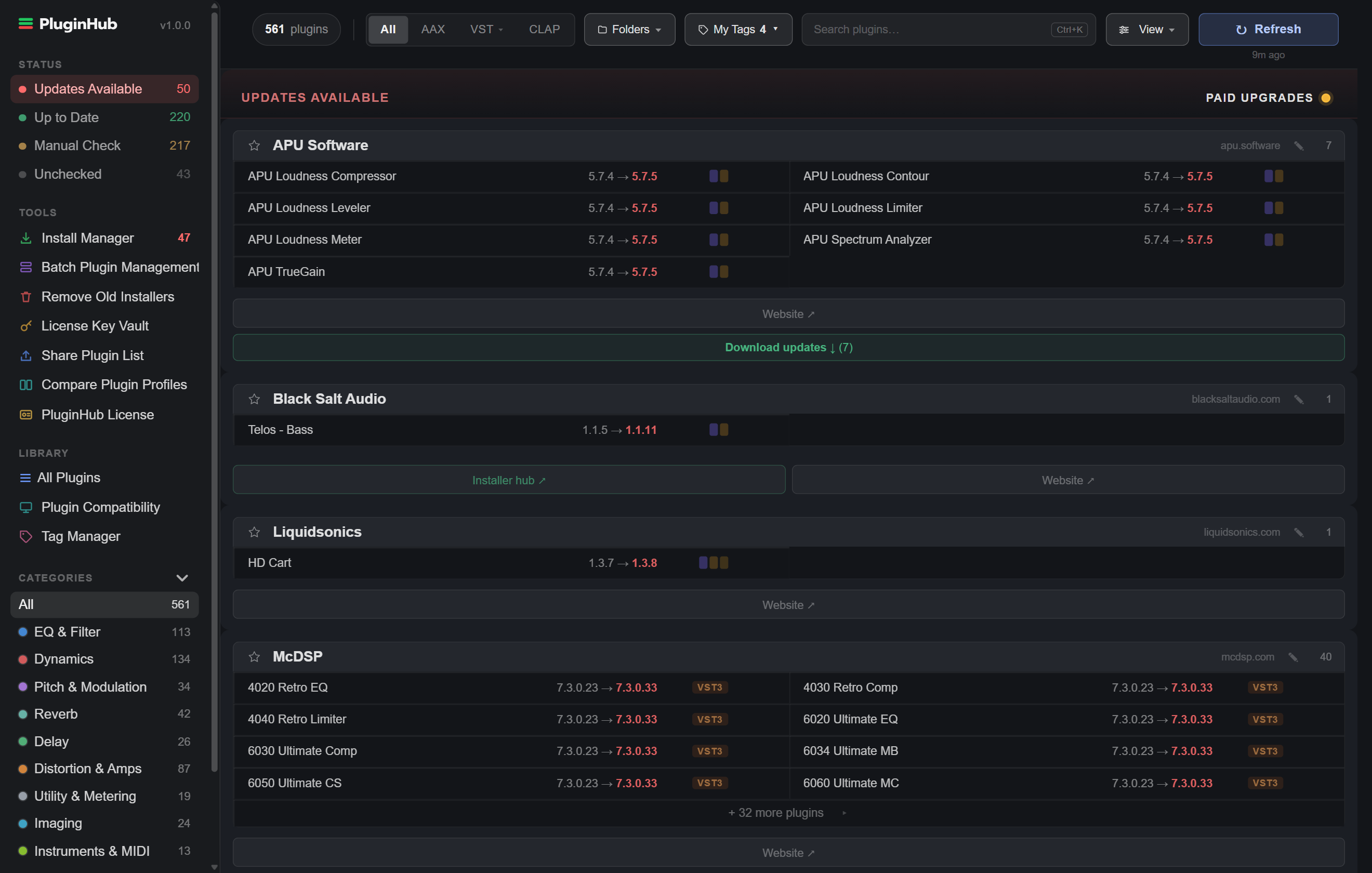
One line per vendor with the numbers in columns: updates, up to date, manual check, and the formats you own from them. Click a column heading to sort by it, and click a vendor to open its plugins underneath.
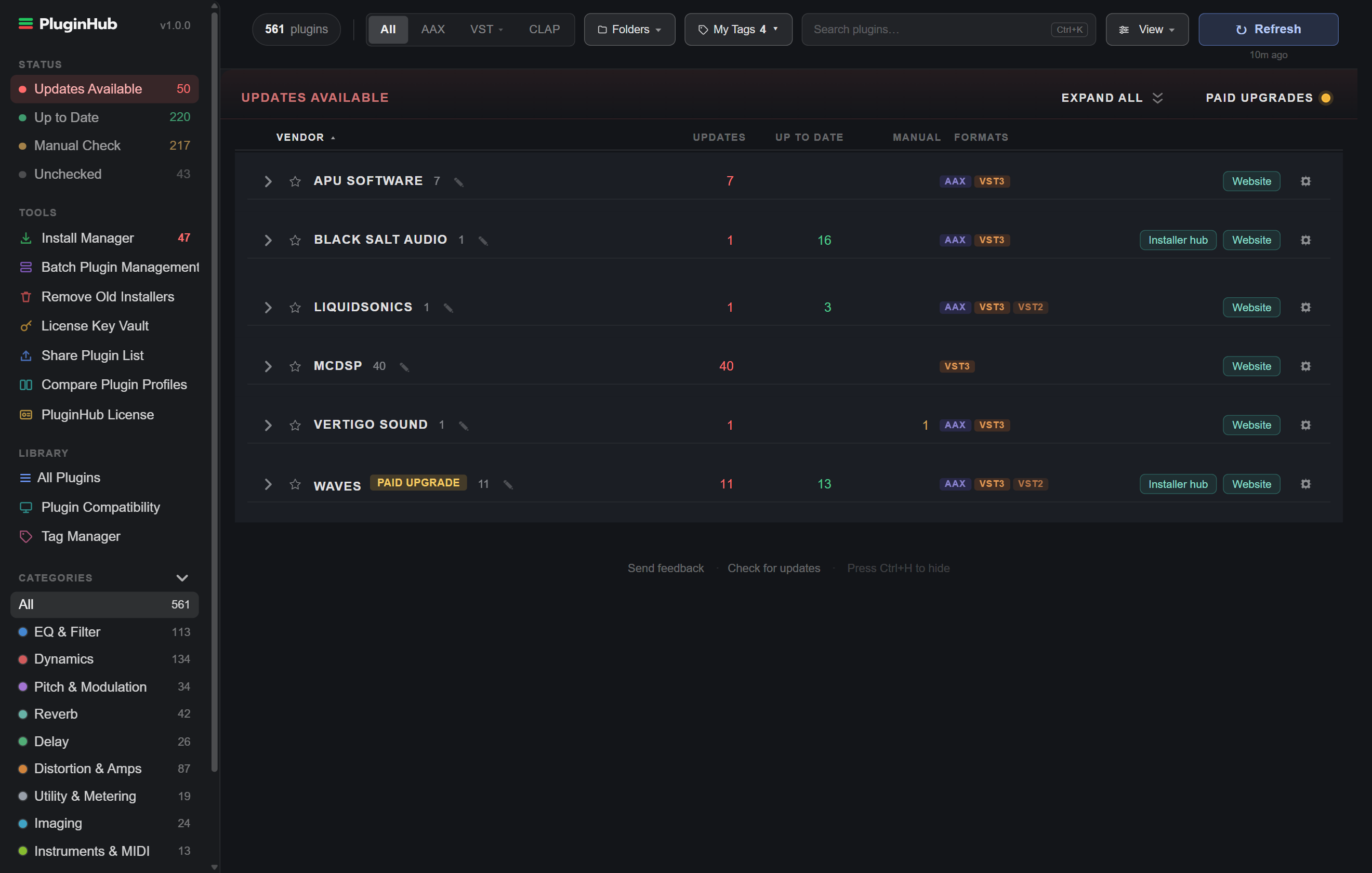
Every plugin you own is sorted into one of eleven groups: EQ & Filter, Dynamics, Pitch & Modulation, Reverb, Delay, Distortion & Amps, Utility & Metering, Imaging, Instruments & MIDI, Restoration, and Channel Strips & More. The Categories section of the sidebar lists all eleven with a color dot and a count.
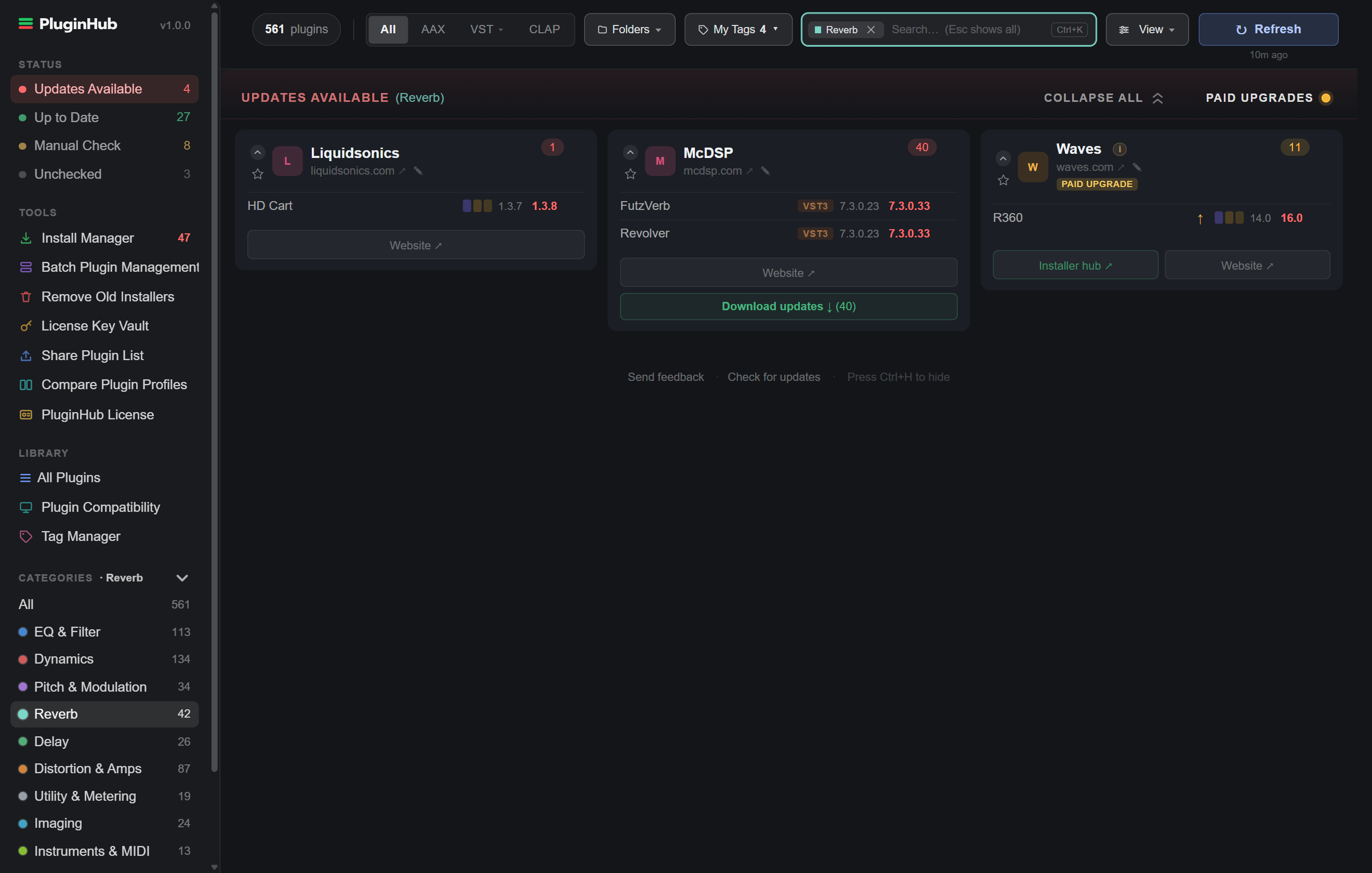
Click a category to filter the whole dashboard. Shift-click to add another category to the selection, and click a selected category again to go back to All. The chip in the search field clears the filter from its ✕. The filter carries through to All Plugins and Batch Plugin Management, so you can act on a whole category at once.
If you disagree with where a plugin landed, open its ⋮ menu and pick a different category; the change sticks on this PC. Click a category's dot in the sidebar to change its color. View › Category labels puts the category name on every plugin row, and View › Collections saves a category and tag selection you use often.
Categories are ours. Tags are yours: any group of plugins you want to keep together, from any vendors, in any combination. A mix session, a mastering chain, a client's rig, the twelve things you actually reach for.
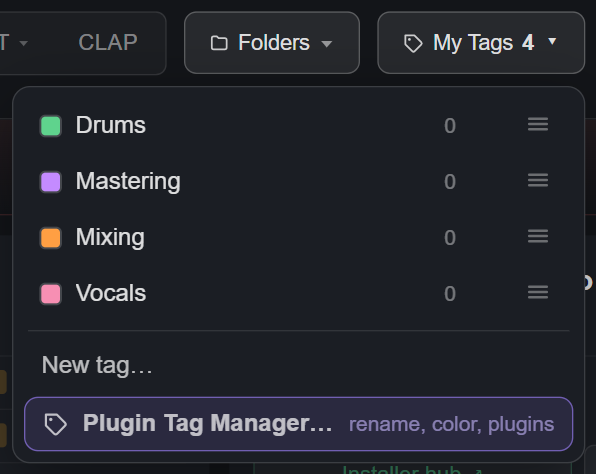
My Tags in the top bar filters the dashboard the way a category does, and Shift-click combines tags the same way. The same dropdown creates a new tag and opens the Tag Manager.
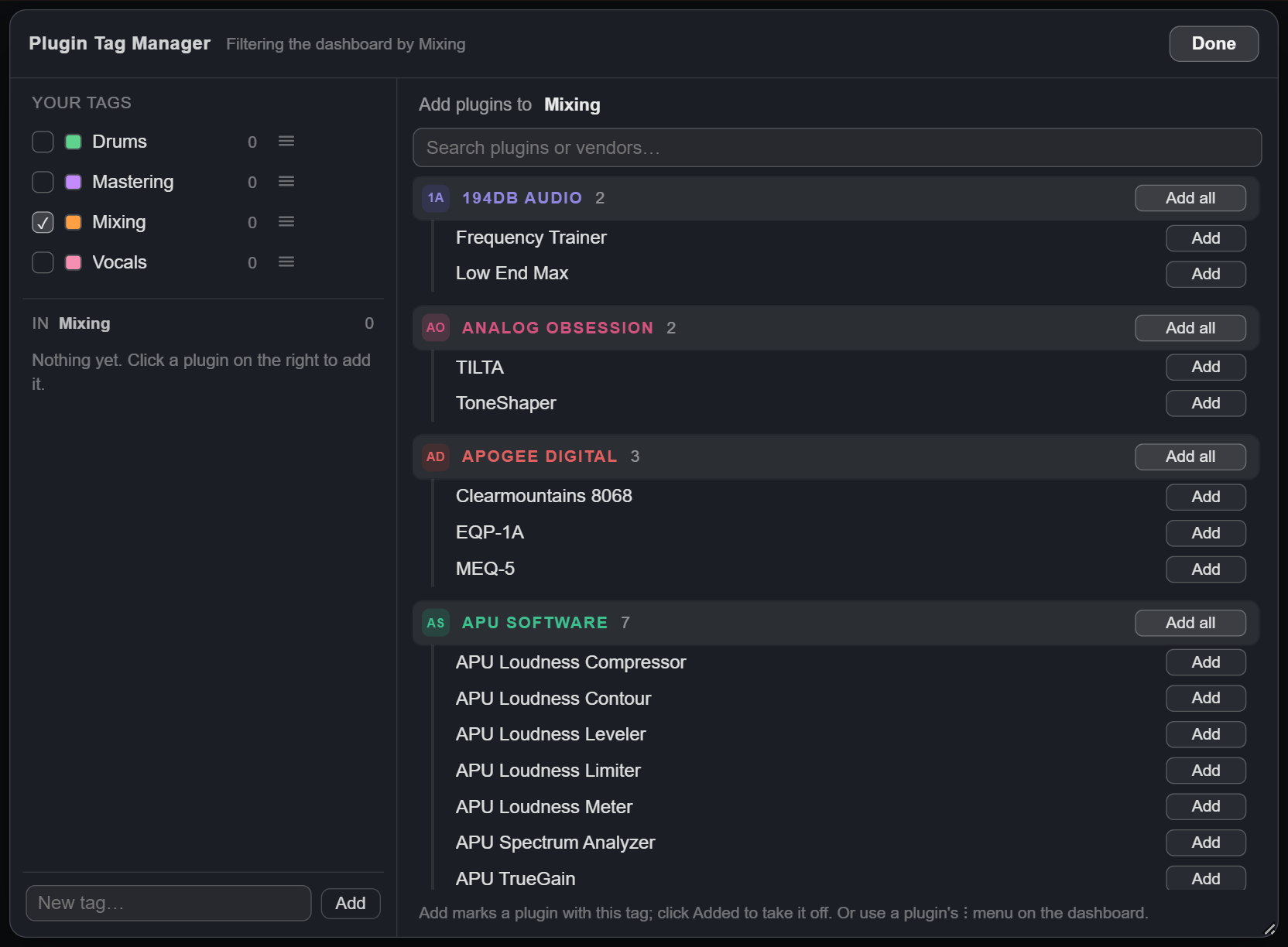
The Tag Manager, in the sidebar under Library, is where tags get built. Check a tag on the left and the right side fills with every plugin you own, grouped by vendor. Click Add on a plugin, or Add all for a whole vendor. Tags can be renamed, recolored, and dragged into the order you want. You can also tag a plugin from its ⋮ menu on the dashboard.
All Plugins, in the sidebar under Library, drops the vendor cards and lists every plugin on your PC in one table: name, vendor, formats, installed version, status, and the same actions you get everywhere else.
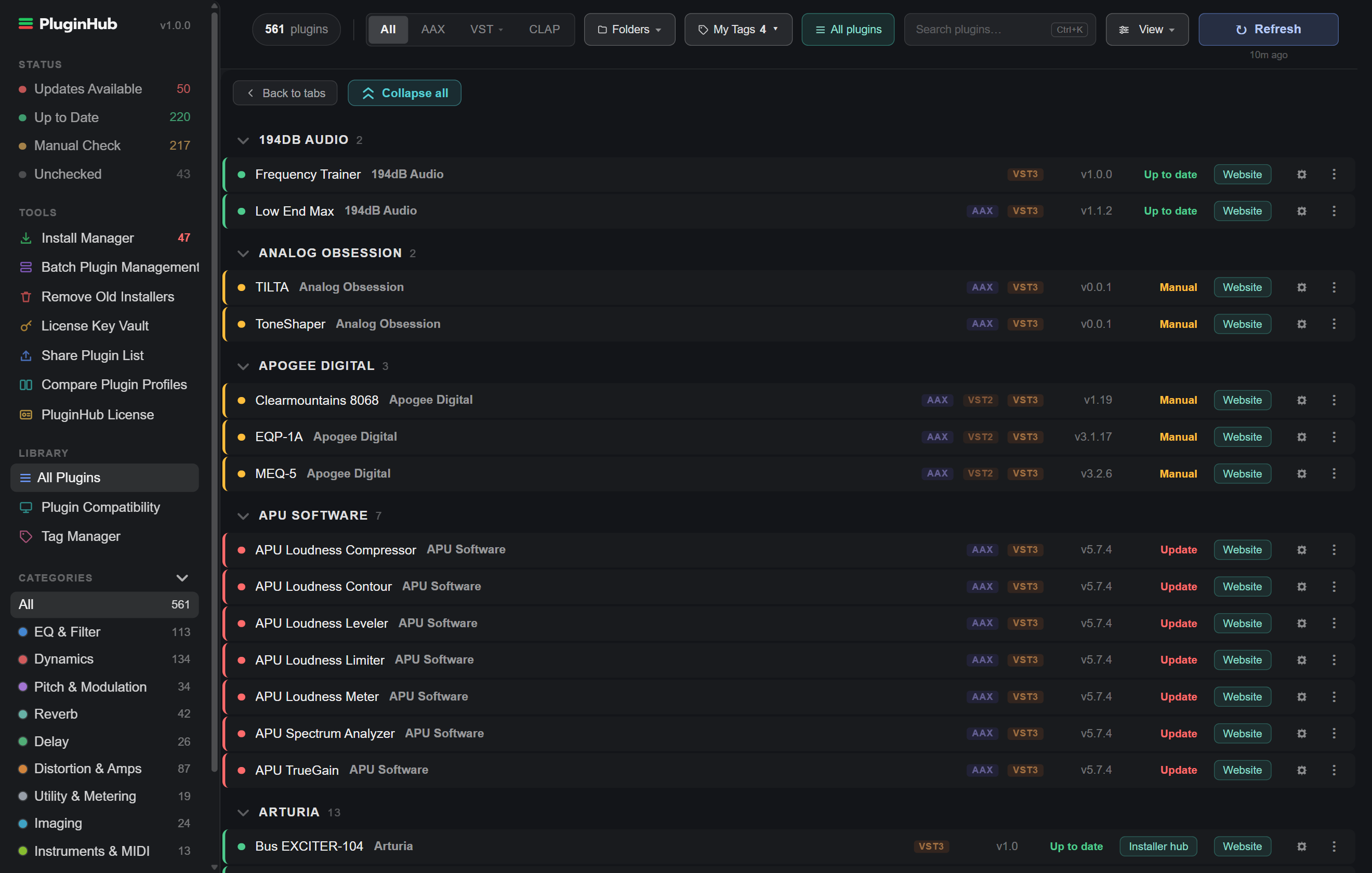
Everything that works on the dashboard works here: the format filter, search, categories, tags, favorites, and the ⋮ menu. Back to tabs returns you to the vendor cards.
Plugin Compatibility, in the sidebar under Library, answers one question before you move a PC to a newer version of Windows: which of your plugins are ready for it, and which should you ask the vendor about first. Pick the version in Moving to at the top.
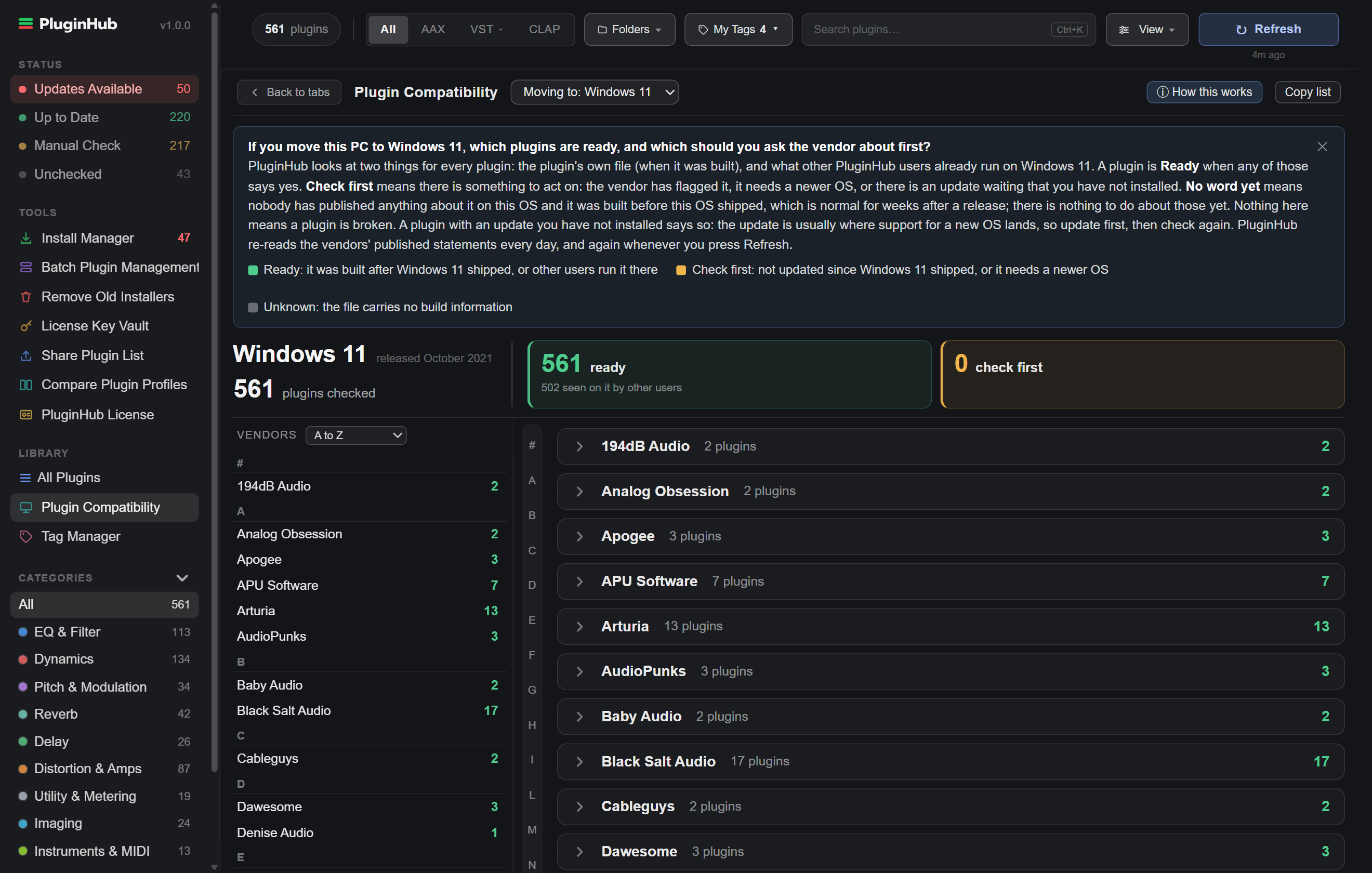
PluginHub looks at two things for every plugin: when the plugin's own file was built, and what other PluginHub users already run on that version of Windows.
Nothing here means a plugin is broken. How this works explains the sources in the app, and Copy list puts the list on your clipboard to send to a vendor or keep.
Click the star on any vendor card to pin the whole vendor. Click the star next to an individual plugin to pin just that plugin. Pinned items get their own Pinned row at the top of the sidebar's Status list, and the Pinned view keeps them grouped by status, so a short list of the things you actually use reads the same way the full dashboard does. The Clear pinned chip, visible only when something is pinned, empties the set in one click.
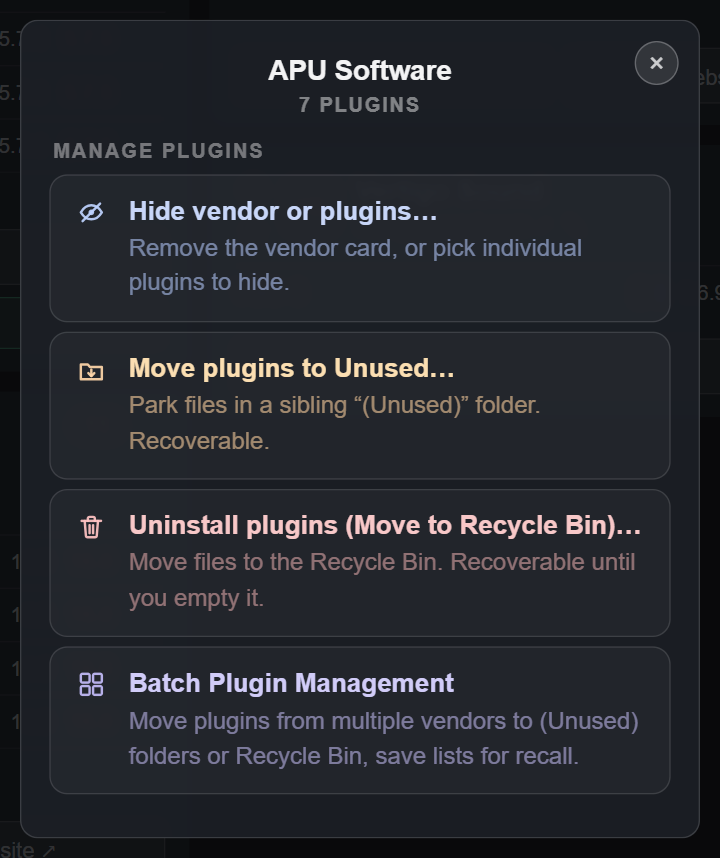
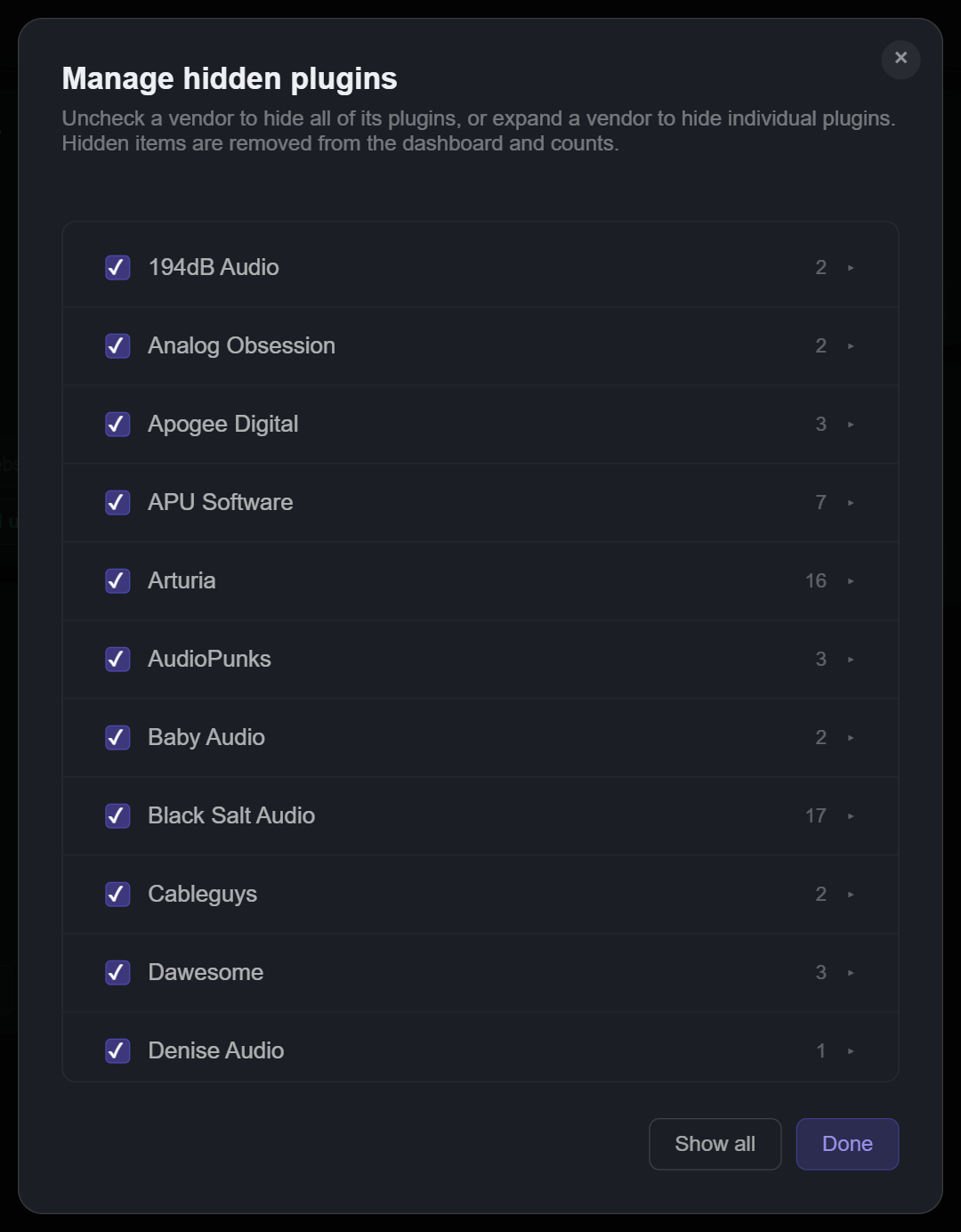
Every vendor has a gear: on its card in the ledger and list layouts, and on each row in All Plugins. It opens that vendor's panel, which shows how many of its plugins you have and offers:
Hidden vendors and plugins are listed under Hidden (N) in the sidebar's Library section. When you hide a vendor, the card stays for a few seconds with an Undo button before it goes.
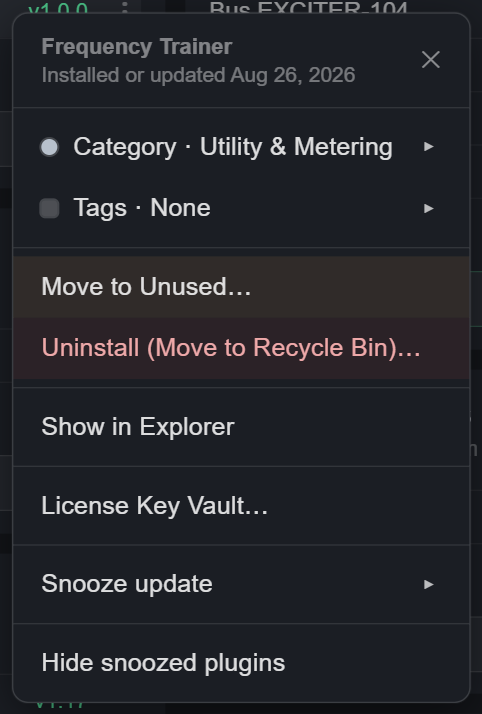
Every plugin row, in every view, has its own menu. Right-click the row or click the ⋮ at the end of it. The top of the menu names the plugin and, under it, when it was installed or last updated (from its files on disk; plugins PluginHub knows only from a vendor's app have no date).
Most plugin folders live under C:\Program Files, which Windows protects, so moving or uninstalling there shows one Windows permission prompt (User Account Control) for the whole action. Click Yes to continue; No leaves every file where it was.
Uninstalling here removes the plugin files. The vendor's own entry in Windows' Installed apps list stays until you remove it there, and PluginHub says so in the confirmation.
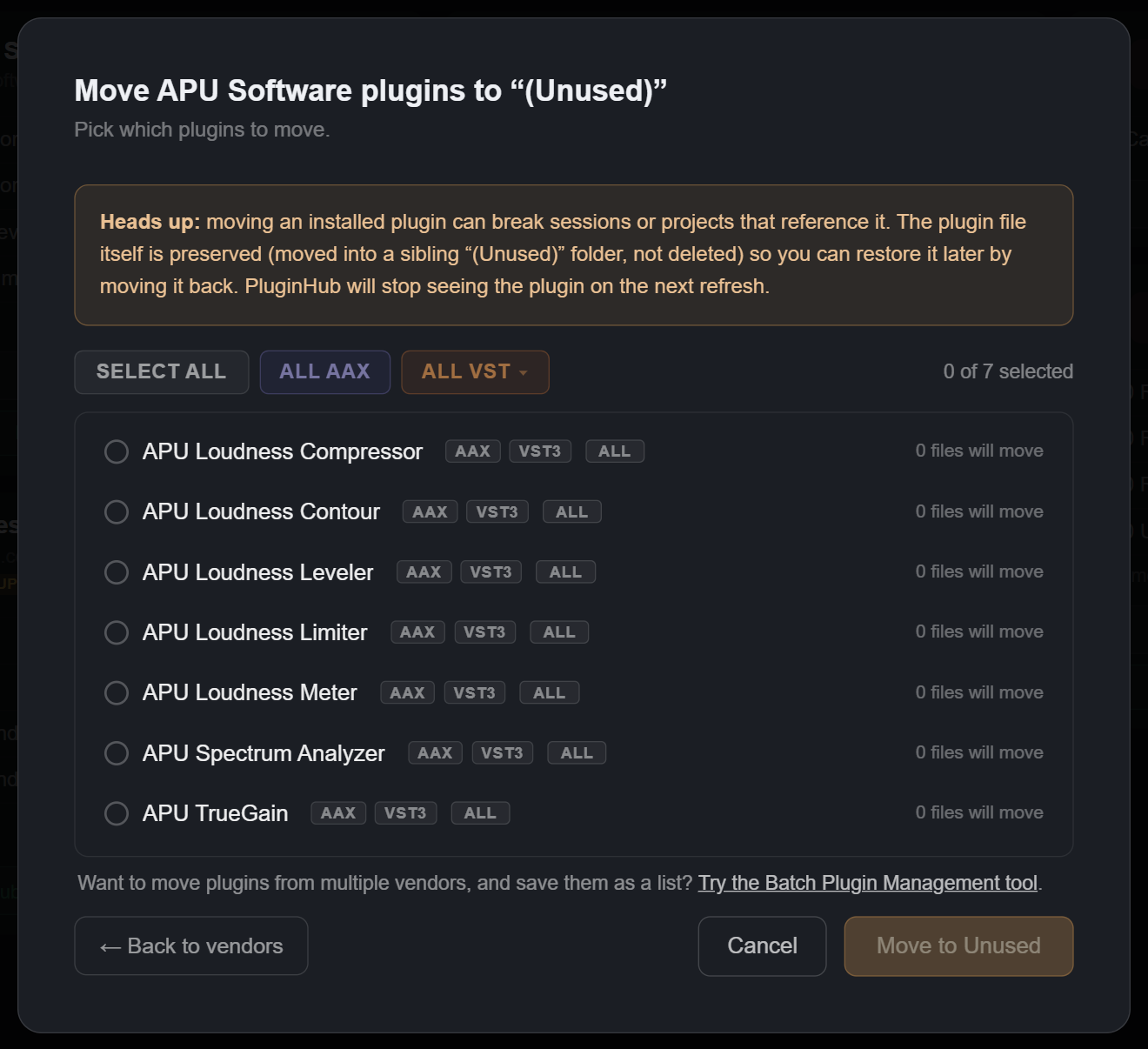
Sometimes you want plugins out of your DAW's way without uninstalling them. Move to Unused moves the plugin files into a sibling folder named after the original with (Unused) on the end, for example C:\Program Files\Common Files\VST3 (Unused). Your DAW stops seeing the plugin on its next scan, but the files are kept, ready to come back.
Open it from a vendor's gear (Move plugins to Unused…), from a plugin row (Move to Unused…), or from the Folders menu's (Unused) tab. Pills at the top select in bulk:
Plugins in protected folders need one Windows permission prompt for the whole move, never one per plugin.
Right after you use Move to Unused… on a plugin or a vendor, a Recently moved row appears in the sidebar's Library section with Restore for everything you just moved. (A move from the Duplicates window doesn't add one; use the Folders menu instead.) Any time later, the Folders menu's (Unused) tab has Restore plugins…, which lists everything in every (Unused) folder and moves what you pick back to its main folder. Batch Plugin Management restores whole lists at once.
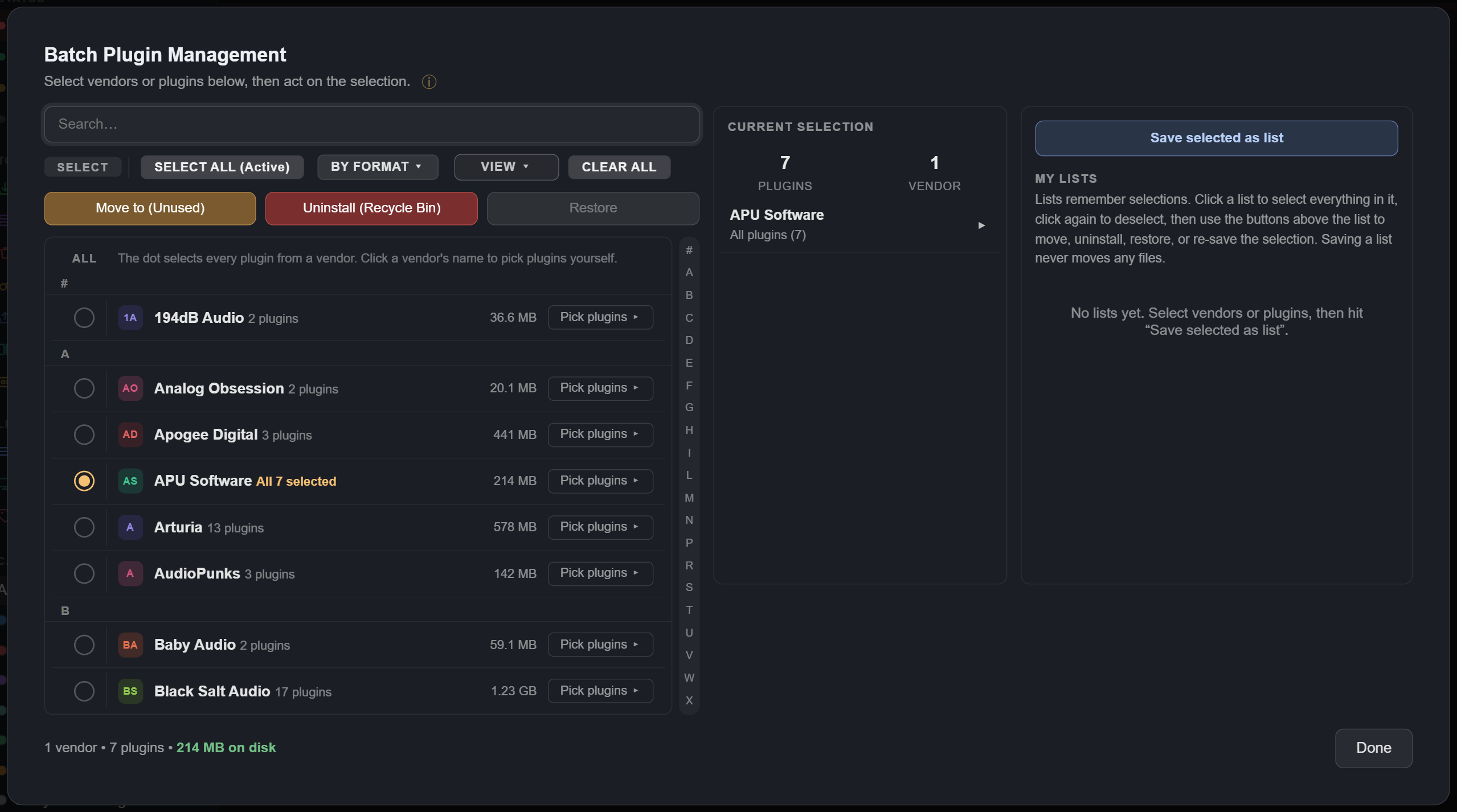
The per-vendor Move and Uninstall windows work one vendor at a time. Batch Plugin Management works across your whole collection: pick plugins from as many vendors as you like, then move them to their (Unused) folders, uninstall them, or restore them in one pass. Great for studios where different engineers use different plugin sets, or for slimming your DAW down to a core set before a session. Open it from the sidebar under Tools.
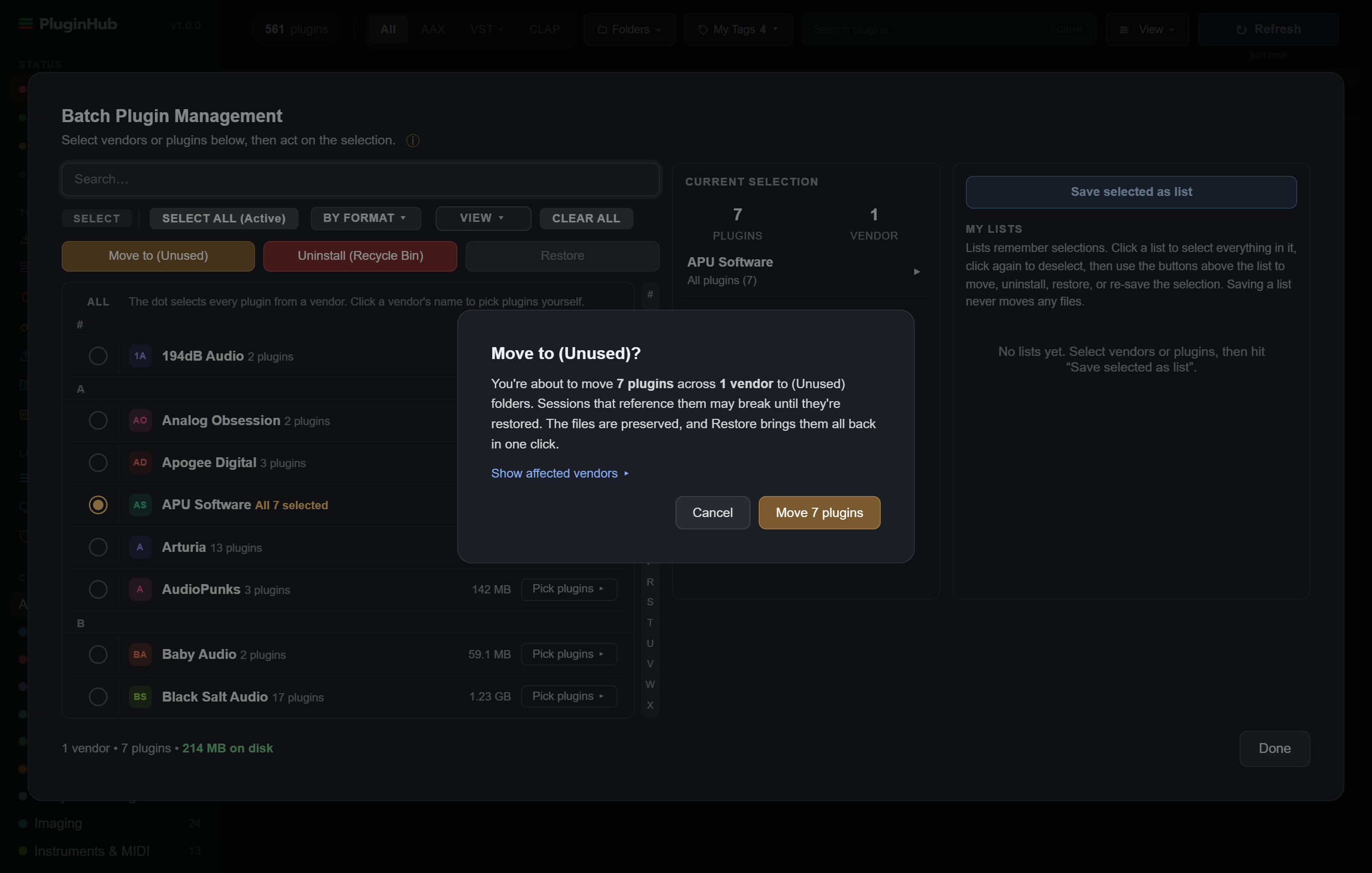
Save selected as list keeps the current selection for later. Click a list to select everything in it, then move, uninstall, restore, or re-save. A list whose plugins have been moved shows under MOVED TO (UNUSED); check it and hit Restore to bring the whole set back. Rename a list by double-clicking its name, drag the ≡ handle to reorder, and deleting a list never touches any files.
Big batches show a progress window with a live bar and a Stop button, which finishes the file in hand and leaves the rest untouched. If anything can't be moved, PluginHub says which file and why.
Install Manager downloads updates straight from the vendor's own server and runs their installers for you, one at a time or several together. It sits in the sidebar under Tools with a count of how many of your pending updates it can handle.
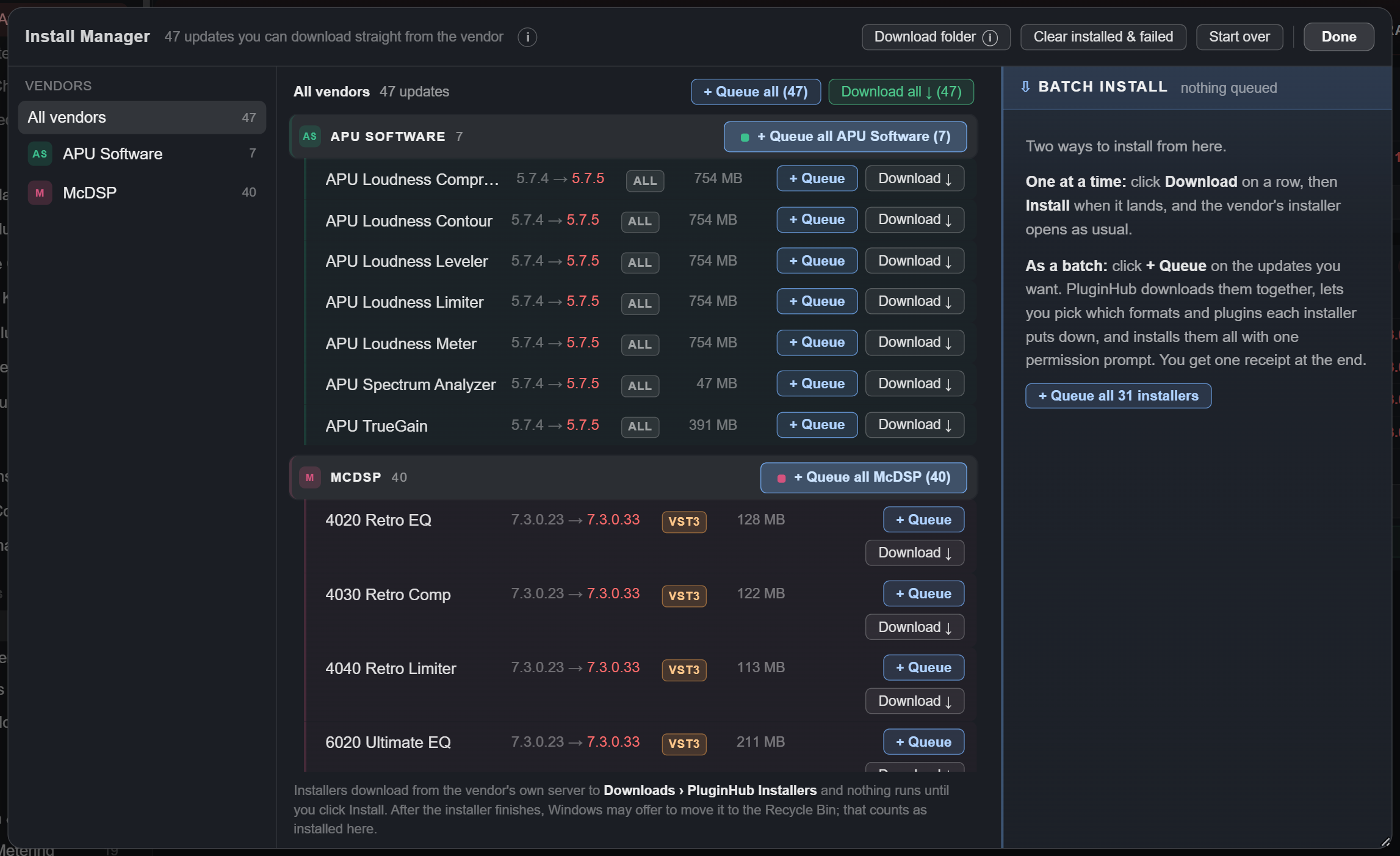
A few vendors' installers refuse to install over a version that is already there. For those, PluginHub offers to run the vendor's own uninstaller first and tells you what that removes. Choose Cancel to run the installer without removing anything.
Only files a vendor publishes openly on their own site. Anything behind a login, an account, or the vendor's own installer app is left alone, and those plugins keep their Website and Installer hub buttons instead. Demo and trial builds are never offered. PluginHub never signs in anywhere on your behalf, and it never hosts or modifies a vendor's files. The ⓘ beside the window title says all of this inside the app too.
Downloads land in Downloads\PluginHub Installers and stay there until you remove them, so nothing installs behind your back and you keep the original files. To keep them somewhere else, another drive for example, click Download folder in the window's header and choose a folder. When an installer finishes, Windows may offer to move it to the Recycle Bin; that's fine. Remove Old Installers clears the rest out when you're done.
When the same plugin (same name, same format) is installed in more than one folder, PluginHub flags it. A duplicates row appears in the sidebar's Library section with the count; click it to open Duplicate plugins detected. A 32-bit and a 64-bit copy of the same plugin are not duplicates.
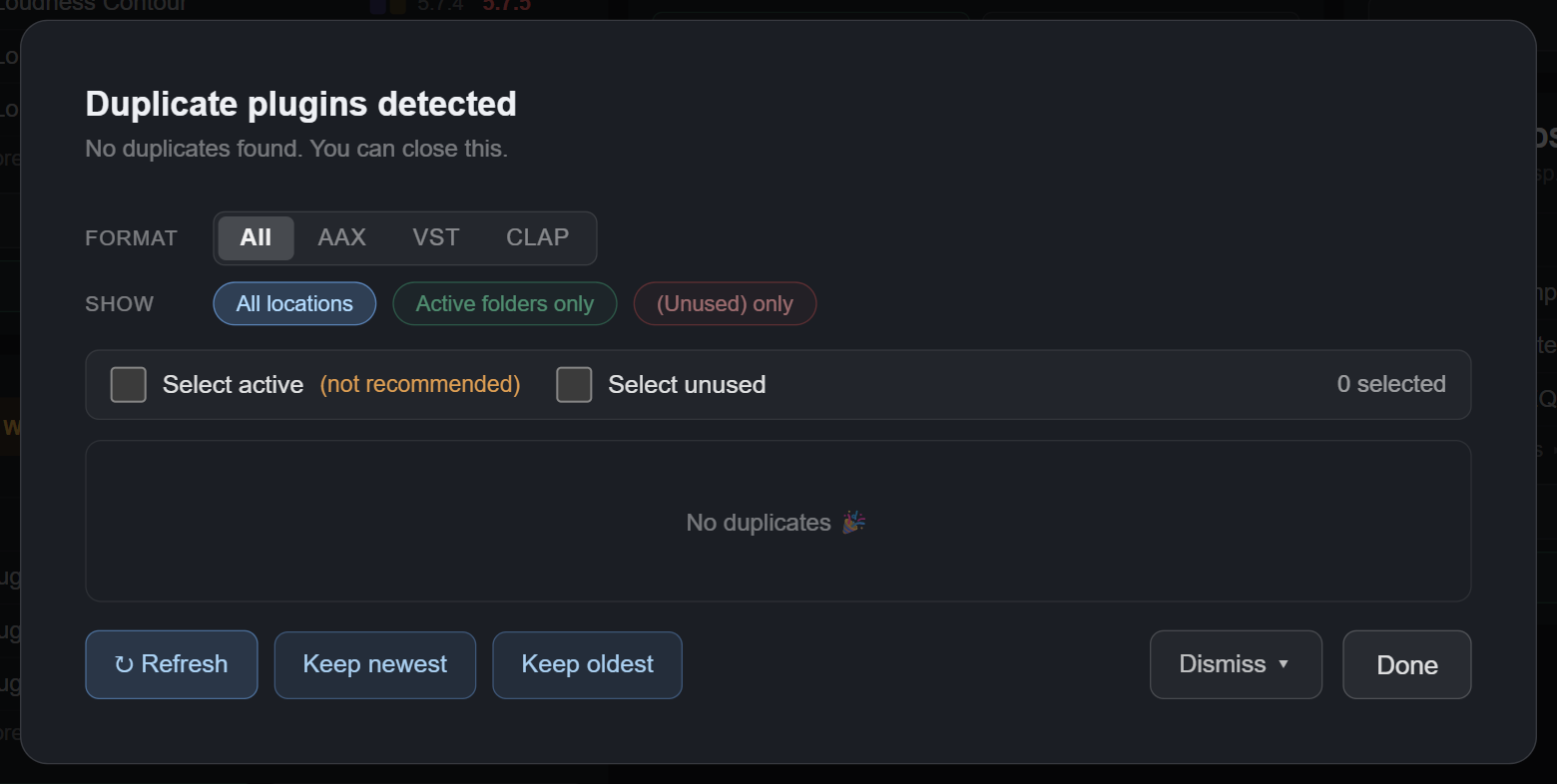
Each group lists every copy with its location, size, install date, and an ACTIVE or UNUSED badge, and each copy has Reveal, Move to Unused and Move to Recycle Bin. Keep newest and Keep oldest select the other copies for you. The filters narrow the list by Format and by location (All locations, Active folders only, (Unused) only). The Dismiss menu pauses the alert for a week, a month, or until you ask.
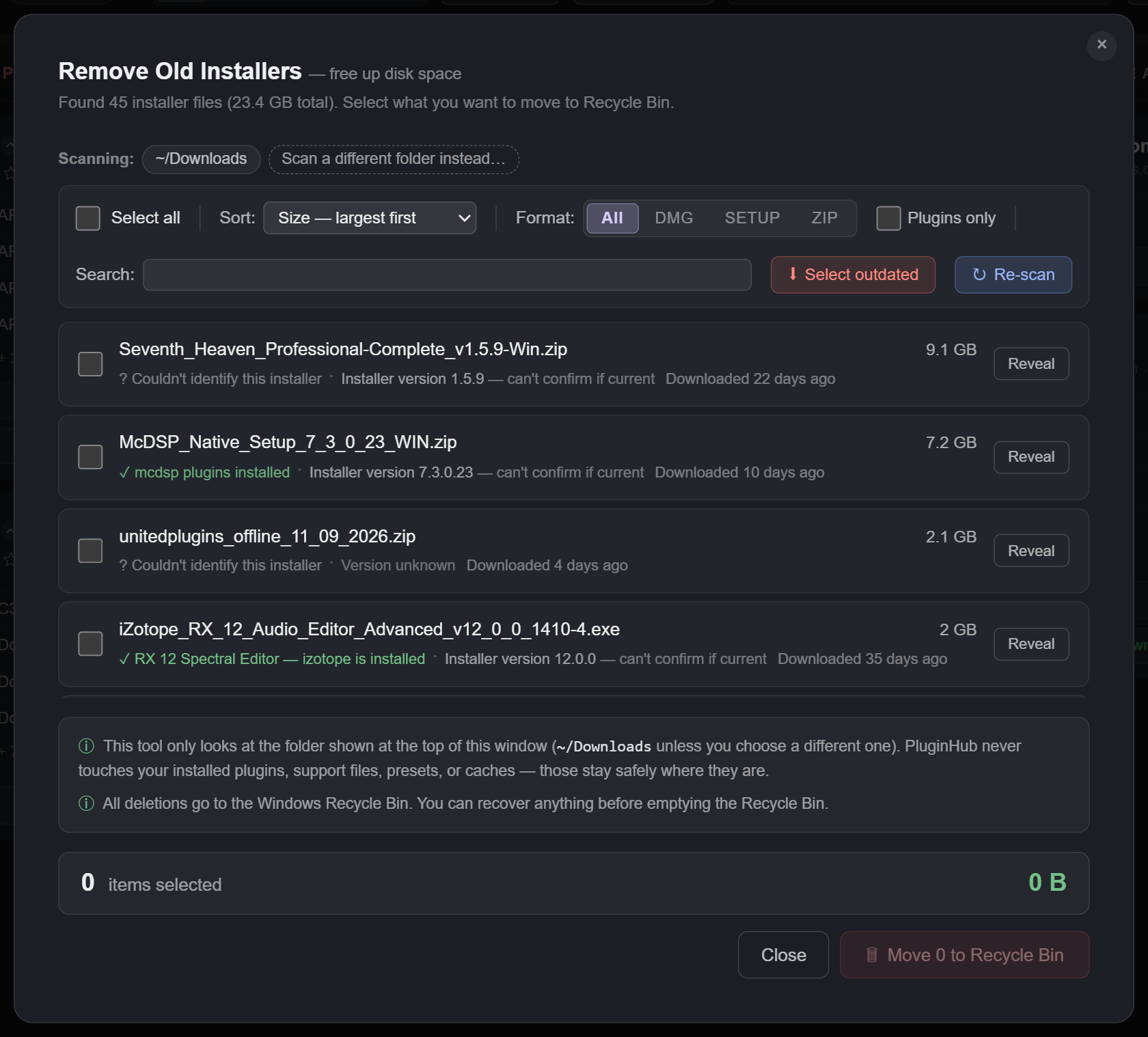
Plugin installers add up. Once a plugin is installed, the original .exe, .msi or .zip usually just sits in Downloads forever, and over a year of buying plugins that's often many gigabytes.
Open Remove Old Installers from the sidebar under Tools. It lists the installers in your Downloads folder, including the one Install Manager downloads into, with each file's size, age and, when PluginHub recognises it, which plugin or vendor it belongs to and whether you already have that version installed.
The tool only looks at the folder named at the top. It never touches your installed plugins, presets or caches, and everything goes to the Recycle Bin, so you can restore any file before you empty it.
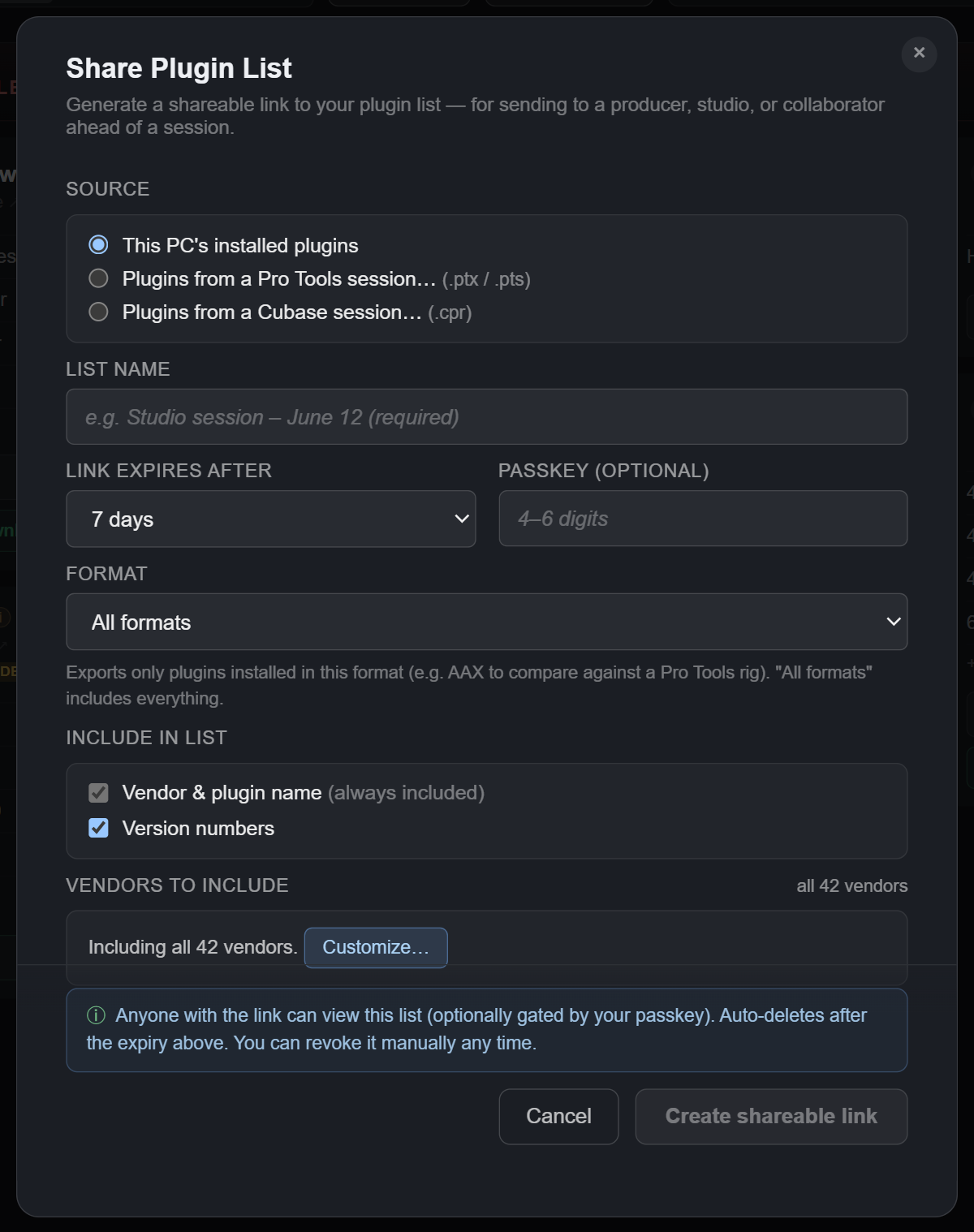
Send a complete list of your installed plugins to anyone: a collaborator, a producer, a studio you're booked into. Open Share Plugin List from the sidebar under Tools.
.ptx / .pts) or a Cubase project (.cpr) actually uses, so a collaborator can see exactly what they need to open it.Create shareable link returns a short code and a full link; copy either. The recipient opens it in any browser, no PluginHub needed. The same list can be exported as CSV, a Google Sheet or a printable PDF.
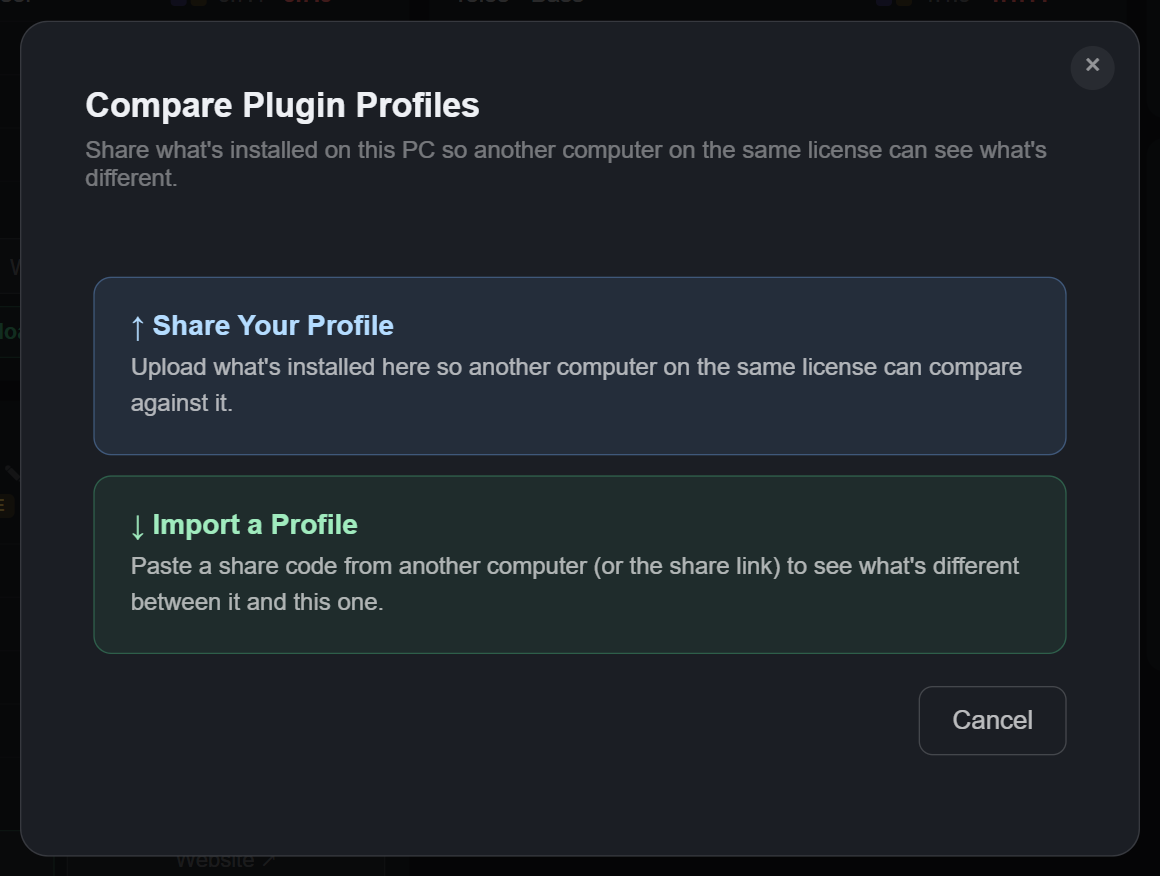
Compare the plugins on this PC with another computer activated on the same PluginHub license. Open Compare Plugin Profiles from the sidebar under Tools on both machines.
PluginHub then shows five groups: In sync, Version diverged (the newer version in green), Only on this PC, Only on the other computer, and Format mismatch (same plugin and version, different formats). Filter by format or sort by the biggest gaps. When the other computer is ahead, Update mine links to the right download or installer hub. Profiles are scoped to your license: a code from a different license returns "share not found".
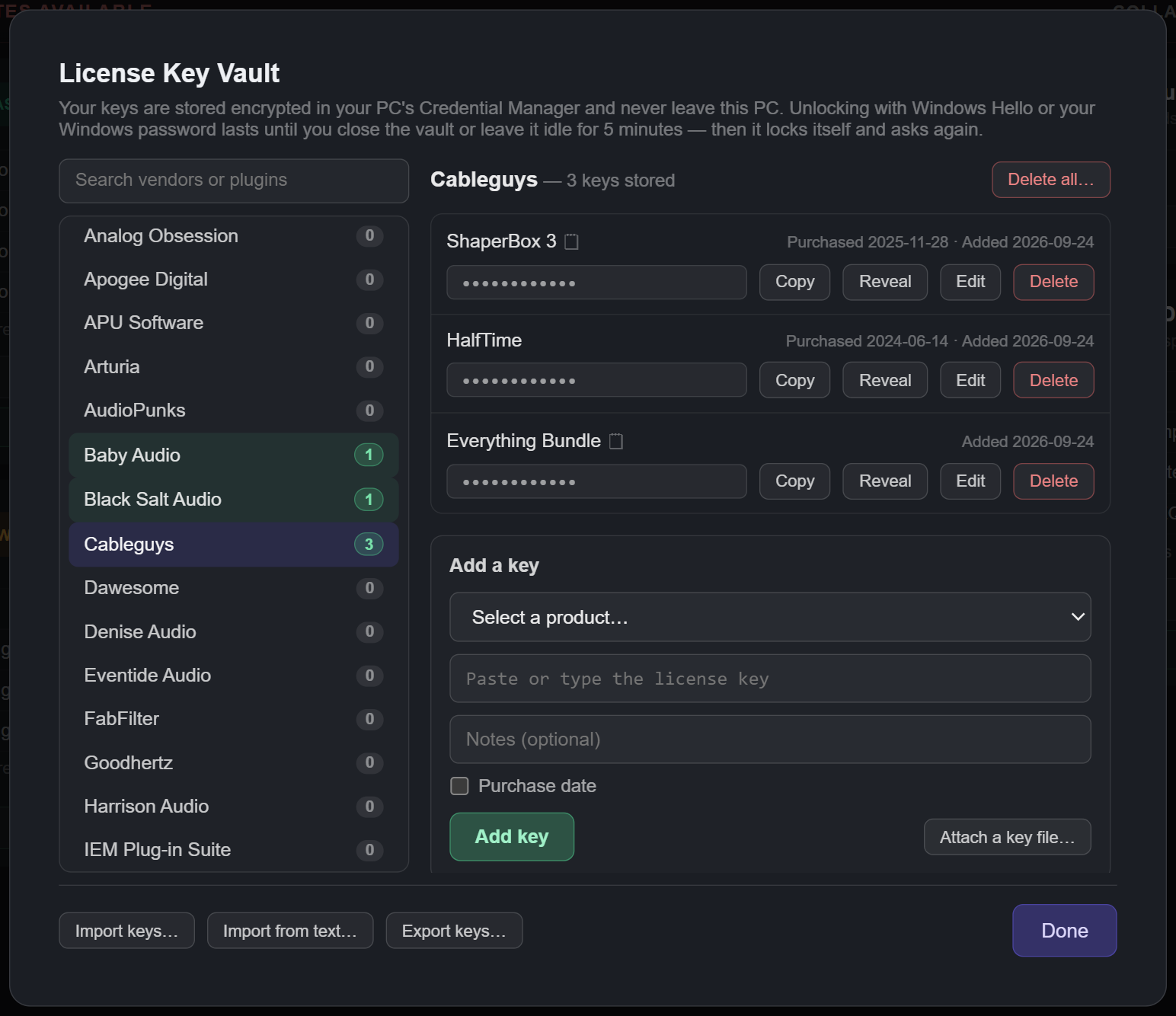
Some vendors deliver plugins with their own license key, and that key is always buried in an email exactly when you need it. The License Key Vault gives those keys one place to live. Open it from the sidebar under Tools, or from any plugin row's ⋮ menu (License Key Vault…) to jump straight to that vendor.
Opening the vault takes Windows Hello: the PIN, fingerprint or face you use to sign in to Windows. If Hello isn't set up on your PC, the first click explains how to add a PIN (Start › Settings › Accounts › Sign-in options). Click License Key Vault again within two minutes to use your Windows account password instead. For a Microsoft account that is the password you use at microsoft.com, not your PIN. The vault stays unlocked while you use it, and locks itself when you close it or leave it idle for five minutes.
Built private from the start:
Click Export keys… and choose a passphrase. PluginHub writes one encrypted .phvault file. Move it however you like (a USB stick, a cloud folder), then click Import keys… in the vault on the other computer, Mac or PC, and enter the passphrase. Nothing lands until you review what's inside and pick which vendors to bring in; keys you already have are marked "already here", so repeating the trip is always safe. There's no way to recover a forgotten passphrase.
A vault file exported on a Mac with its license option (rather than a passphrase) doesn't open on Windows. Export it again on the Mac with a passphrase.
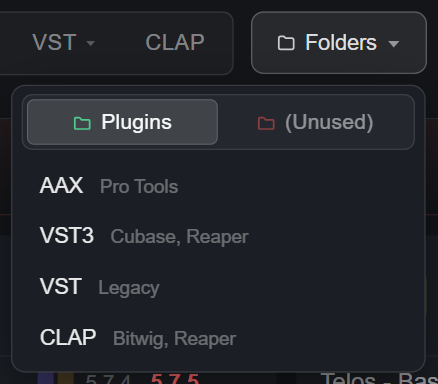
The Folders dropdown in the top bar has two tabs:
PluginHub scans the standard Windows plugin folders:
C:\Program Files\Common Files\Avid\Audio\Plug-InsC:\Program Files\Common Files\VST3, and the per-user %LOCALAPPDATA%\Programs\Common\VST3C:\Program Files\VSTPlugins, C:\Program Files\Steinberg\VstPlugins, C:\Program Files\Common Files\VST2, and the VST folder your DAW registered with WindowsC:\Program Files\Common Files\CLAP, and the per-user %LOCALAPPDATA%\Programs\Common\CLAPThe same folders under C:\Program Files (x86) are scanned too. Keep plugins somewhere else? Add the folder under Custom Install Paths.
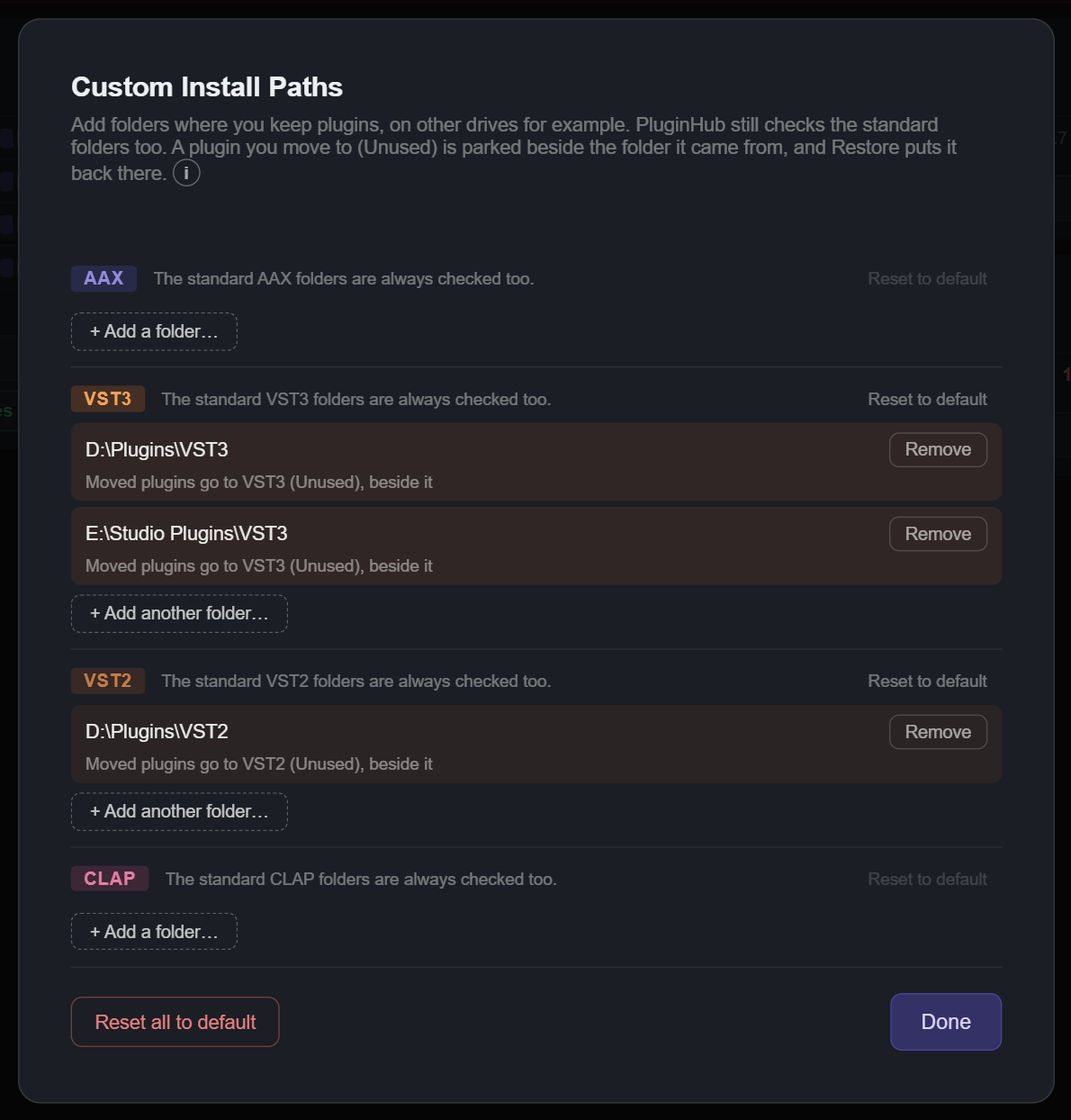
If you also keep plugins somewhere PluginHub doesn't scan by default, on other drives for example, open Settings › Custom install paths and add those folders. Each format takes as many as you need.
PluginHub lives in the Windows system tray, at the right end of the taskbar. The icon's tooltip shows how many updates are waiting, and a red dot appears on it when there are some.
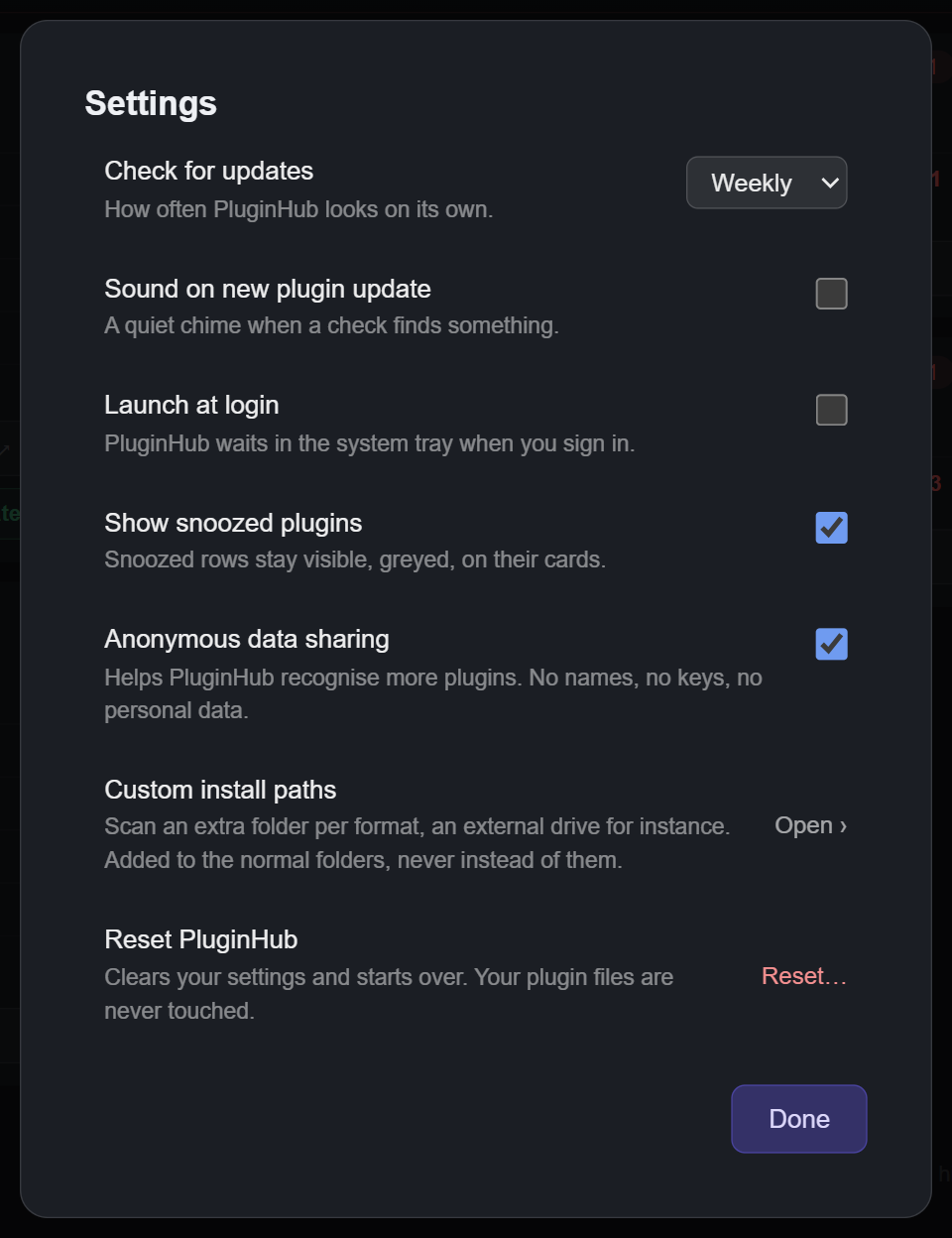
Open Settings from the gear at the bottom of the sidebar.
Daily, Weekly or Monthly: how often PluginHub checks your plugins on its own, in the background from the tray.
Plays the Windows notification sound when a background check finds new updates. Off by default.
Starts PluginHub quietly in the system tray when you sign in to Windows, so the background checks keep running without you opening it.
On by default. Keeps snoozed plugins visible, dimmed, on their cards. See Snooze updates.
Helps PluginHub recognise more plugins. See Privacy for exactly what is shared and what never is.
An extra plugin folder per format. See Custom Install Paths.
Clears your scan results, vendor cache and settings, then quits so you can start fresh from the Start menu. It never touches your plugin files, your License Key Vault, your PluginHub license, or launch at login. Windows asks you to confirm first, and it can't be undone.
PluginHub checks for new versions of itself automatically. When one is available, a window shows what's new; click Install update. PluginHub closes, installs the new version and opens again on its own, with no administrator prompt. To check right away, click Check for updates at the bottom of the dashboard.
Your settings, scan data, vault and license carry over between versions.
To identify which plugins you have and which versions are current, PluginHub reads:
PluginHub never reads:
Anonymous data sharing is opt-in. When it's on, PluginHub sends plugin names, vendor names, installed version numbers, format counts, and your Windows and PluginHub versions. It never shares personal information, file paths, license keys, serial numbers, vendor logins, or anything from your projects.
Your License Key Vault keys are stored encrypted in Windows Credential Manager and never leave your PC. They are never included in shared plugin lists, exports, logs, feedback or anonymous data.
Click Refresh or press Ctrl+R. If it still doesn't appear, check where the plugin was installed: a plugin outside the standard folders needs its folder added under Custom Install Paths.
It's still running in the system tray, possibly behind the ^ arrow. Click the icon, or open PluginHub from the Start menu.
A DAW or plugin host still has that plugin loaded, and Windows won't let anyone move a file that's in use. Close the program PluginHub names (or remove the plugin from your session) and try again.
Plugins under C:\Program Files are protected by Windows, so moving or uninstalling them, and batch installs, need one User Account Control prompt. Click Yes to go ahead; No changes nothing.
Add a PIN under Start › Settings › Accounts › Sign-in options, or click License Key Vault again within two minutes to use your Windows password instead.
The vendor's website may have changed how it publishes versions, or it may be blocking automated requests. PluginHub falls back to its central catalog when this happens. If it persists across refreshes, send feedback.
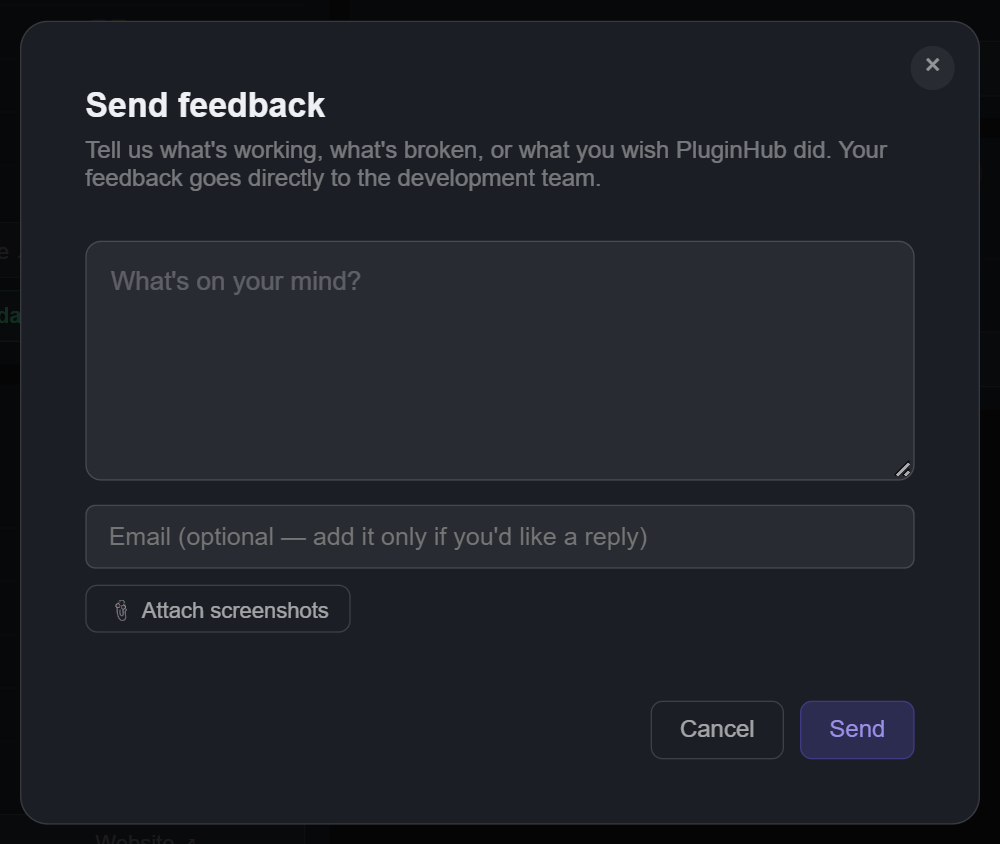
Click Send feedback at the bottom of the dashboard. Say what happened, attach screenshots if you can, and add your email if you'd like a reply. If you close the window before sending, your message and screenshots are still there when you open it again. PluginHub attaches the most recent lines of its log automatically, which is usually enough to find the cause. You can also email support@pluginhubapp.com. The log file itself is %APPDATA%\PluginHub\shell_win.log.
Open Start › Settings › Apps › Installed apps, find PluginHub, and choose Uninstall. Quit PluginHub from the tray first.
Uninstalling removes the app. It leaves your PluginHub data in %APPDATA%\PluginHub, and your license and vault keys in Windows Credential Manager, so reinstalling picks up where you left off. To remove everything, delete your keys in the vault before uninstalling, then delete that folder afterwards. Your plugins are never touched either way.